
Navigasyon
Uygulamayı Yükle
Daha fazla seçenek
Eski bir web tarayıcısı kullanıyorsunuz. Bu veya diğer siteleri görüntülemekte sorunlar yaşayabilirsiniz..
Tarayıcınızı güncellemeli veya alternatif bir tarayıcı kullanmalısınız.
Tarayıcınızı güncellemeli veya alternatif bir tarayıcı kullanmalısınız.
gameloop
- Konuyu başlatan ketrin
- Başlangıç tarihi
- Durum
- Üzgünüz bu konu cevaplar için kapatılmıştır...
Uzman Üye
GameLoop, a global leading free Android emulator to play mobile games on PC. Have better gaming experience in PUBG Mobile✓, CODM✓, Pokémon UNITE✓
Seçkin Üye
Try to download Chinese version
Is Chinese version better than global version?Try to download Chinese version

Süper Üye
1. Make Sure Your PC Meets the System Reqs
These are the minimum requirements to use Gameloop. If your PC doesn't meet them, consider upgrading.Minimum:
- OS: Windows 7 and above (64bit required)
- Processor: Core i3 560 @ 3.3 GHz or AMD Phenom II X4 945 @ 3.0 GHz
- Memory: 3 GB RAM
- Graphics: NVIDIA GeForce GTX 460 or AMD Radeon HD 5870 and above
- DirectX: Version 9.0c
- HDD: 1GB free
- OS: Windows 7 and above (64bit required)
- Processor: Core-i3 or AMD at 2.6 GHz
- Graphics: NVIDIA GeForce GTX 660
- Memory: At least 8GB of RAM
- DirectX: Version 9.0c
- HDD: 1GB free
2. Use the Best Gameloop Settings
You can take several steps to eliminate Gameloop COD mobile lag that will work just as well in any other Gameloop game.- Go to the Settings Center. Choose Smart Mode for Rendering.
- Tick Render Cache, Enforce Global Render, Prioritize Dedicated GPU and Rendering Optimization.
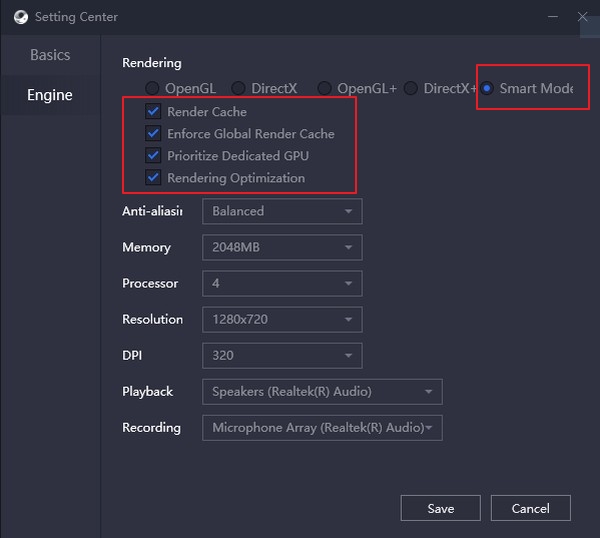
- Select Close for Anti-aliasing.
- Change Memory to half of your system memory.
- Change the Resolution to 1024x576, Change DPI to 160.
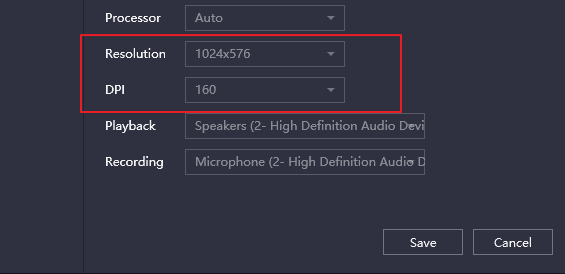
- On the Game Tab, set Gaming Resolution to SD 720P and Display Option to Smooth.
3. Set In-Game Settings
Every game on Gameloop has its own settings page, where you can alter various settings to improve performance. Poke around in your games' settings page and look for anything that may speed things up. As an example, here are the settings Tencent recommends for PUBG:- Graphics: Smooth.
- Framerate: Extreme.
- Style: Colorful.
- Anti-aliasing: Disable.
- Auto-Adjust Graphics: Yes.
4. Set Optimal Power Settings for Gameloop
You can alter your computer's Power settings to provide a power boost. For anyone suffering from Gameloop COD mobile lag, this step has been found to be especially useful.- Type Control Panel in the taskbar search.
- Search for Power Options.
- Click Power Options and select High performance.
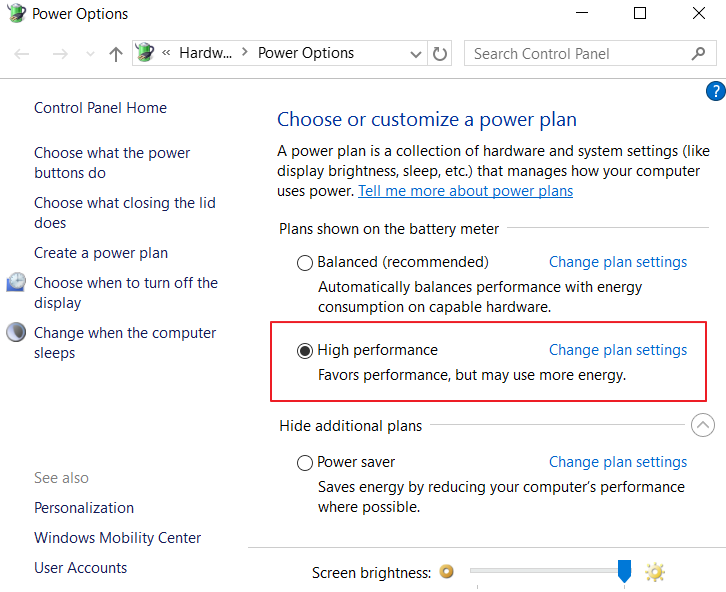
- For Laptops, change the battery in the taskbar to Maximum performance.
5. Change Your Gameloop CPU Priority
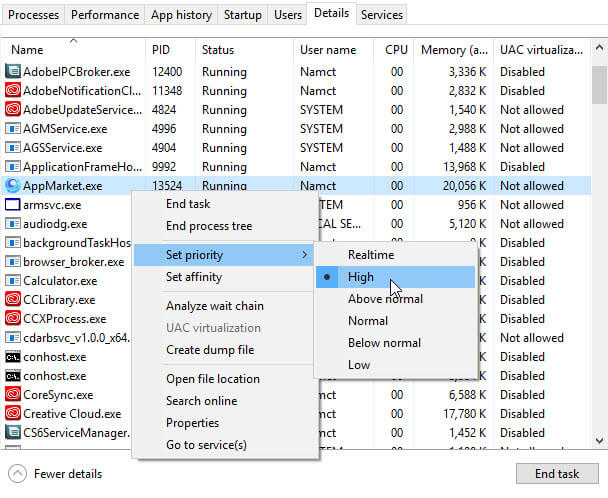
You can alter Gameloops CPU priority manually, as, by default, it is set to normal. Follow the steps below to change it:- Open Gameloop.
- Open the Task Manager by right-clicking on the taskbar.
- Select the Details tab.
- Right-click on AppMarket.exe and Set Priority to High.
6. Improve Performance by Increasing Your Page File
You can increase system performance by increasing the size of your page file to help fix lag in Gameloop. This allows Windows to use a portion of your hard drive as extra memory.- Type Advanced System Settings in the taskbar search. Click Advanced in System Properties.
- Click on Settings in the Performance section. Click the Advanced tab in Performance Options.
- In the Virtual Memory section, click Change.
- Untick Automatically manage paging file size.
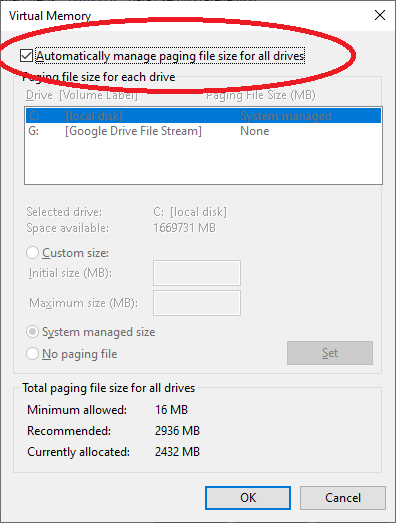
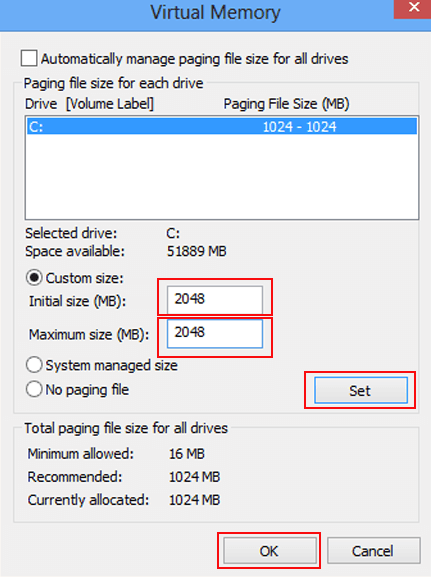
- Select Custom Size, then select increase the Initial and Maximum values.
- Click Set, then click Apply/Ok as needed.
7. Increase CPU Power With Virtualization Mode
Most motherboards will have an option to enable Virtualization mode somewhere within the BIOS. This mode allows a single CPU processor to act as if it were multiple CPUs.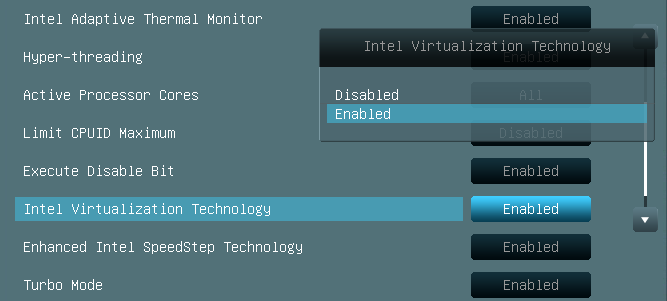
8. Try a Game Accelerator
There is still hope if your system has limited resources or doesn't quite meet the system requirements. Using a game accelerator can be a great way to fix lag in Gameloop. There are several game accelerators, such as MZ Game Accelerator, which are software programs that turn off any unnecessary Windows Services and allows you to allocate more system resources to Gameloop. Game Accelerators tend to work best with older computers.If limited resources were causing your lag, then there's a good chance that using a game accelerator will free up just enough memory and CPU to give you smooth gaming.
9. Use a Virtual Machine to Sidestep Lag
If you have a medium to powerful PC and are still experiencing lag, a great way to solve them is to create a Virtual Machine. A VM is a powerful program that will create a new virtual computer using your system's resources and load in only what is absolutely necessary.This can be quite a complicated set-up initially, but if you have lots of programs loaded, then it may be a great way to find a fix for Gameloop COD mobile lag. It's better to go to Microsoft's explanation
Bağlantıları görmek için lütfen
Giriş Yap
. Follow these steps precisely for lag-free gaming.10. Turn off Windows Automatic Update
Again, the Tencent support forums recommend turning off Windows updates, as it can interfere with Gameloop. Many people describe this as the best Gameloop PUBG lag fix.To turn off Windows Updates, follow this procedure:
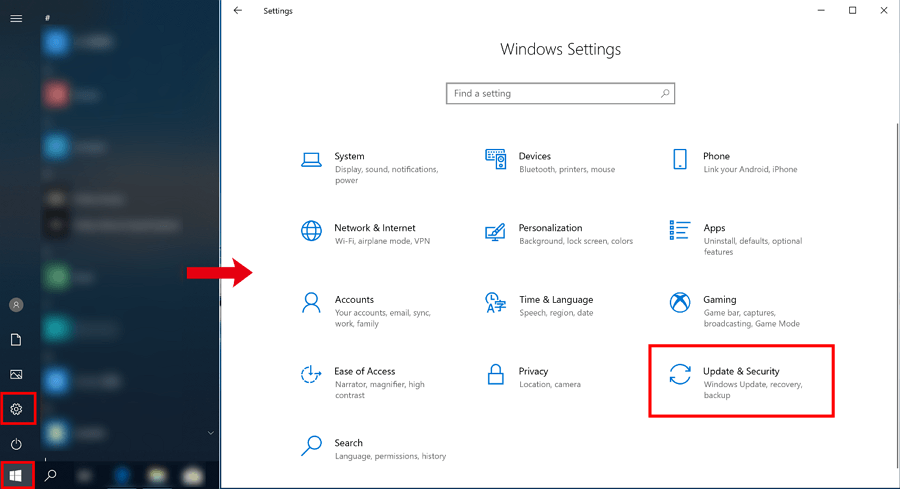
- Open Settings.
- Click Update & Security.
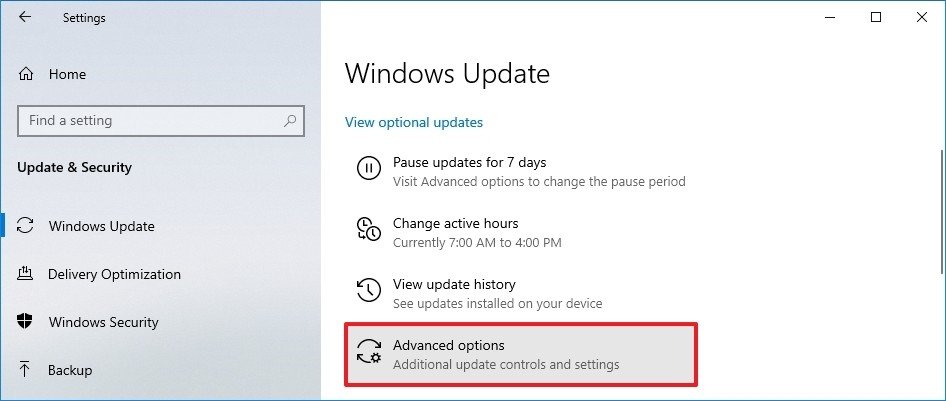
- Click Windows Update.
- Chose Advanced Options.
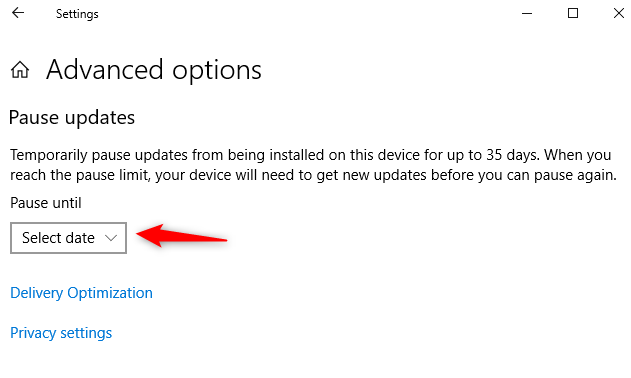
- Under Pause Updates, choose a date as far in the future as possible.
11. Turn off Hardware Automatic Updates
As with the Windows Update, automatic hardware updates can cause system instability and lead to lag.- Type Advanced System Settings in the taskbar search.
- Chose the Hardware tab.
- Click on Device Installation Settings.
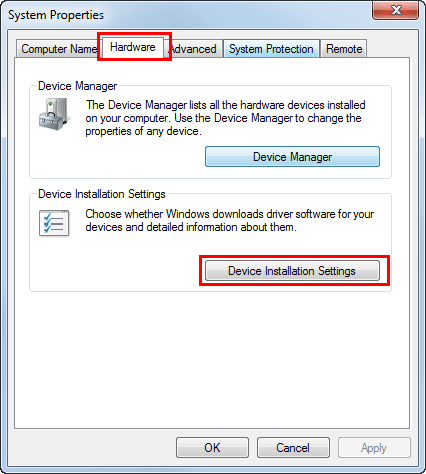
- Select No, click Save Changes.
12. Optimize your Hard Disk Drive
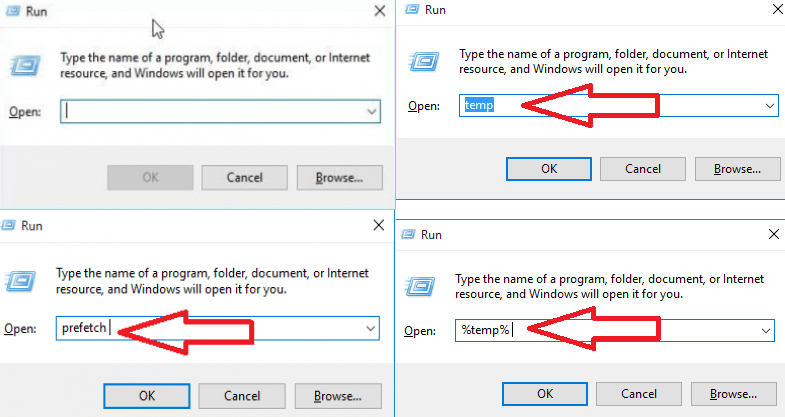
Tencent has several suggestions for improving lag issues in Gameloop on their support forums and discord. If you have more than one hard disk, keeping Windows on its own drive and installing games on the other will improve your performance. It is also highly recommended that you install Gameloop on a Solid State Drive, as they provide enormous performance boosts.You might clean the recycle bin regularly for some free space in your drive. However, Windows also takes plenty of space to store your temporary files on its drive. You can find the temporary files by pressing Win+R and typing temp, %temp%, and prefetch. Then you can delete those files.
13. Make Sure You Have the Latest Hardware Drivers
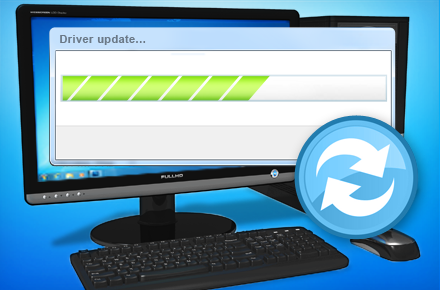
One of the most common causes of performance issues in PCs, in general, is out-of-date drivers. By updating your hardware drivers to the latest version, you can ensure that any known bug fixes have been applied and that your hardware is performing to its maximum.Graphics cards are especially vulnerable to driver issues, so regularly check the Nvidia and AMD websites and check the driver version numbers to ensure your drivers are correct. For any other hardware, check the device manager and look for any issues that have been flagged; these could be the cause of your Gameloop lag.
Amaterasu
Seçkin Üye
this is actually so good man lmao where did you get this from1. Make Sure Your PC Meets the System Reqs
These are the minimum requirements to use Gameloop. If your PC doesn't meet them, consider upgrading.
Minimum:
Recommended:
- OS: Windows 7 and above (64bit required)
- Processor: Core i3 560 @ 3.3 GHz or AMD Phenom II X4 945 @ 3.0 GHz
- Memory: 3 GB RAM
- Graphics: NVIDIA GeForce GTX 460 or AMD Radeon HD 5870 and above
- DirectX: Version 9.0c
- HDD: 1GB free
- OS: Windows 7 and above (64bit required)
- Processor: Core-i3 or AMD at 2.6 GHz
- Graphics: NVIDIA GeForce GTX 660
- Memory: At least 8GB of RAM
- DirectX: Version 9.0c
- HDD: 1GB free
2. Use the Best Gameloop Settings
You can take several steps to eliminate Gameloop COD mobile lag that will work just as well in any other Gameloop game.
- Go to the Settings Center. Choose Smart Mode for Rendering.
- Tick Render Cache, Enforce Global Render, Prioritize Dedicated GPU and Rendering Optimization.
- Select Close for Anti-aliasing.
- Change Memory to half of your system memory.
- Change the Resolution to 1024x576, Change DPI to 160.
- On the Game Tab, set Gaming Resolution to SD 720P and Display Option to Smooth.
3. Set In-Game Settings
Every game on Gameloop has its own settings page, where you can alter various settings to improve performance. Poke around in your games' settings page and look for anything that may speed things up. As an example, here are the settings Tencent recommends for PUBG:
- Graphics: Smooth.
- Framerate: Extreme.
- Style: Colorful.
- Anti-aliasing: Disable.
- Auto-Adjust Graphics: Yes.
4. Set Optimal Power Settings for Gameloop
You can alter your computer's Power settings to provide a power boost. For anyone suffering from Gameloop COD mobile lag, this step has been found to be especially useful.
- Type Control Panel in the taskbar search.
- Search for Power Options.
- Click Power Options and select High performance.
- For Laptops, change the battery in the taskbar to Maximum performance.
5. Change Your Gameloop CPU Priority
You can alter Gameloops CPU priority manually, as, by default, it is set to normal. Follow the steps below to change it:
- Open Gameloop.
- Open the Task Manager by right-clicking on the taskbar.
- Select the Details tab.
- Right-click on AppMarket.exe and Set Priority to High.
6. Improve Performance by Increasing Your Page File
You can increase system performance by increasing the size of your page file to help fix lag in Gameloop. This allows Windows to use a portion of your hard drive as extra memory.
- Type Advanced System Settings in the taskbar search. Click Advanced in System Properties.
- Click on Settings in the Performance section. Click the Advanced tab in Performance Options.
- In the Virtual Memory section, click Change.
- Untick Automatically manage paging file size.
- Select Custom Size, then select increase the Initial and Maximum values.
- Click Set, then click Apply/Ok as needed.
7. Increase CPU Power With Virtualization Mode
Most motherboards will have an option to enable Virtualization mode somewhere within the BIOS. This mode allows a single CPU processor to act as if it were multiple CPUs.
This can be enormously beneficial for struggling systems. Check your motherboard instructions for more specific details.
8. Try a Game Accelerator
There is still hope if your system has limited resources or doesn't quite meet the system requirements. Using a game accelerator can be a great way to fix lag in Gameloop. There are several game accelerators, such as MZ Game Accelerator, which are software programs that turn off any unnecessary Windows Services and allows you to allocate more system resources to Gameloop. Game Accelerators tend to work best with older computers.
If limited resources were causing your lag, then there's a good chance that using a game accelerator will free up just enough memory and CPU to give you smooth gaming.
9. Use a Virtual Machine to Sidestep Lag
If you have a medium to powerful PC and are still experiencing lag, a great way to solve them is to create a Virtual Machine. A VM is a powerful program that will create a new virtual computer using your system's resources and load in only what is absolutely necessary.
This can be quite a complicated set-up initially, but if you have lots of programs loaded, then it may be a great way to find a fix for Gameloop COD mobile lag. It's better to go to Microsoft's explanationBağlantıları görmek için lütfen Giriş Yap. Follow these steps precisely for lag-free gaming.
10. Turn off Windows Automatic Update
Again, the Tencent support forums recommend turning off Windows updates, as it can interfere with Gameloop. Many people describe this as the best Gameloop PUBG lag fix.
To turn off Windows Updates, follow this procedure:
- Open Settings.
- Click Update & Security.
- Click Windows Update.
- Chose Advanced Options.
- Under Pause Updates, choose a date as far in the future as possible.
11. Turn off Hardware Automatic Updates
As with the Windows Update, automatic hardware updates can cause system instability and lead to lag.
- Type Advanced System Settings in the taskbar search.
- Chose the Hardware tab.
- Click on Device Installation Settings.
- Select No, click Save Changes.
12. Optimize your Hard Disk Drive
Tencent has several suggestions for improving lag issues in Gameloop on their support forums and discord. If you have more than one hard disk, keeping Windows on its own drive and installing games on the other will improve your performance. It is also highly recommended that you install Gameloop on a Solid State Drive, as they provide enormous performance boosts.
You might clean the recycle bin regularly for some free space in your drive. However, Windows also takes plenty of space to store your temporary files on its drive. You can find the temporary files by pressing Win+R and typing temp, %temp%, and prefetch. Then you can delete those files.
13. Make Sure You Have the Latest Hardware Drivers
One of the most common causes of performance issues in PCs, in general, is out-of-date drivers. By updating your hardware drivers to the latest version, you can ensure that any known bug fixes have been applied and that your hardware is performing to its maximum.
Graphics cards are especially vulnerable to driver issues, so regularly check the Nvidia and AMD websites and check the driver version numbers to ensure your drivers are correct. For any other hardware, check the device manager and look for any issues that have been flagged; these could be the cause of your Gameloop lag.

Seçkin Üye
There are many explanations on YouTube that will help you better

Seçkin Üye
So many tutorial on YouTube go see my guy
Uzman Üye
Game loop the best
Süper Üye
I used gameloop when playing CODM
Onaylı Üye
try download gameloop 32bit maybe it can fix your problem
Uzman Üye
it is good for pubg and call of duty
Seçkin Üye
gameloop is decently optimized for pubgm
Onaylı Üye
Do you experience any freezes during actions in the games? I play "Top Eleven" using the NoxPlayer emulator, and it frequently freezes, requiring me to reopen it.
- Yasaklandı
- #19
Banlı Üye
gameloop is great
- Durum
- Üzgünüz bu konu cevaplar için kapatılmıştır...
Benzer Konular
- Cevaplar
- 7
- Görüntüleme
- 514
- Cevaplar
- 3
- Görüntüleme
- 165


- Cevaplar
- 1
- Görüntüleme
- 282
- Soru-Cevap
- Cevaplar
- 1
- Görüntüleme
- 83

- Kilitli
- Çözüldü
- Cevaplar
- 1
- Görüntüleme
- 162