How to disable Windows def 100%

Durum
Üzgünüz bu konu cevaplar için kapatılmıştır...
Onaylı Üye
Katılım
15 Haz 2018
Mesajlar
62
Tepki puanı
18
Yaş
30
7 HİZMET YILI
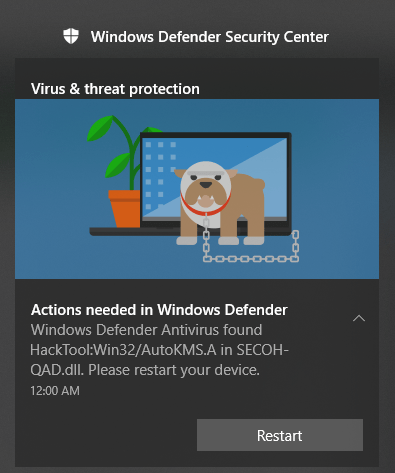
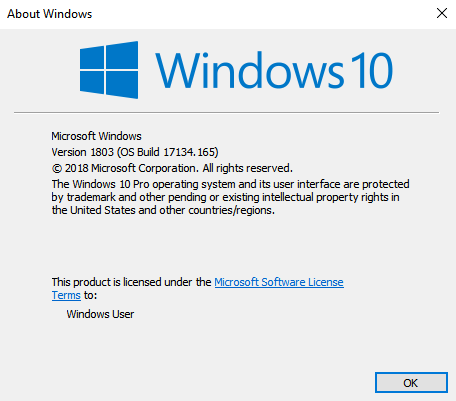
I met the case, like the picture, I tried to skip it but occasionally it popped up and automatically turned on UAC level 2
This does not affect much, but sometimes I feel uncomfortable. Please help me
1532041767013.png
1532042103689.png
 
CoreCheat CSGO
Griffin Premium
Katılım
10 May 2016
Mesajlar
1,766
Çözümler
5
Tepki puanı
720
Ödüller
14
Yaş
25
Sosyal
10 HİZMET YILI
If you're using Windows 10 Pro or any other enterprise variant, such as Windows 10 Enterprise or Windows 10 Education, you can use the Local Group Policy Editor to disable Windows Defender from your computer permanently.

  1. Use the Windows key + R keyboard shortcut to open the Run command.
  2. Type gpedit.msc and click OK to open the Local Group Policy Editor.
  3. Browse the following path:
    Computer Configuration > Administrative Templates > Windows Components > Windows Defender
  4. On the right, double-click Turn off Windows Defender.
    Bağlantıları görmek için lütfen Giriş Yap
  5. Select Enabled to disable Windows Defender.
  6. Click Apply.
  7. Click OK.
    Bağlantıları görmek için lütfen Giriş Yap
Once you complete the above steps, you will notice the Windows Defender shield icon will continue to run in the system tray. To get rid of the icon, simply restart your computer.

At any time, if you want to re-enable Windows Defender, you only need to follow the same steps, but this time, on step 5 select the option Not configured. Then restart your computer to complete reverting the changes.

How to disable Windows Defender using the Registry
If you're running Windows 10 Home, you won't have access to the Local Group Policy Editor, as it's only available for enterprise versions of the operating system. However, you can modify the registry to accomplish the same result.

Important: Before diving into this guide, it's worth noting that editing the registry can be dangerous, and it can cause irreversible damage to your system if you don't do it correctly. It's highly recommended to make a
Bağlantıları görmek için lütfen Giriş Yap
. You've been warned!

  1. Use the Windows key + R keyboard shortcut to open the Run command, type regedit, and click OK to open the registry.
  2. Browse the following path:
    HKEY_LOCAL_MACHINE\SOFTWARE\Policies\Microsoft\Windows Defender
  3. If you don't see DWORD DisableAntiSpyware, right-click on an empty space, select New, and click on DWORD (32-bit) Value.
  4. Name the key DisableAntiSpyware.
  5. Double-click the newly created key, and set the value from 0 to 1.
    Bağlantıları görmek için lütfen Giriş Yap
  6. Restart your computer to complete the task.
At any time, if you want to re-enable Windows Defender, you only need to follow the same steps, but this time, change the value on step 5 from 1 to 0. Then restart your computer to complete reverting the changes.


Pasted from another site.
 
Onaylı Üye
Katılım
15 Haz 2018
Mesajlar
62
Tepki puanı
18
Yaş
30
7 HİZMET YILI
If you're using Windows 10 Pro or any other enterprise variant, such as Windows 10 Enterprise or Windows 10 Education, you can use the Local Group Policy Editor to disable Windows Defender from your computer permanently.

  1. Use the Windows key + R keyboard shortcut to open the Run command.
  2. Type gpedit.msc and click OK to open the Local Group Policy Editor.
  3. Browse the following path:
    Computer Configuration > Administrative Templates > Windows Components > Windows Defender
  4. On the right, double-click Turn off Windows Defender.
    Bağlantıları görmek için lütfen Giriş Yap
  5. Select Enabled to disable Windows Defender.
  6. Click Apply.
  7. Click OK.
    Bağlantıları görmek için lütfen Giriş Yap
Once you complete the above steps, you will notice the Windows Defender shield icon will continue to run in the system tray. To get rid of the icon, simply restart your computer.

At any time, if you want to re-enable Windows Defender, you only need to follow the same steps, but this time, on step 5 select the option Not configured. Then restart your computer to complete reverting the changes.

How to disable Windows Defender using the Registry
If you're running Windows 10 Home, you won't have access to the Local Group Policy Editor, as it's only available for enterprise versions of the operating system. However, you can modify the registry to accomplish the same result.

Important: Before diving into this guide, it's worth noting that editing the registry can be dangerous, and it can cause irreversible damage to your system if you don't do it correctly. It's highly recommended to make a
Bağlantıları görmek için lütfen Giriş Yap
. You've been warned!

  1. Use the Windows key + R keyboard shortcut to open the Run command, type regedit, and click OK to open the registry.
  2. Browse the following path:
    HKEY_LOCAL_MACHINE\SOFTWARE\Policies\Microsoft\Windows Defender
  3. If you don't see DWORD DisableAntiSpyware, right-click on an empty space, select New, and click on DWORD (32-bit) Value.
  4. Name the key DisableAntiSpyware.
  5. Double-click the newly created key, and set the value from 0 to 1.
    Bağlantıları görmek için lütfen Giriş Yap
  6. Restart your computer to complete the task.
At any time, if you want to re-enable Windows Defender, you only need to follow the same steps, but this time, change the value on step 5 from 1 to 0. Then restart your computer to complete reverting the changes.


Pasted from another site.
thank you! I will try
 
Onaylı Üye
Katılım
28 Nis 2018
Mesajlar
50
Tepki puanı
6
Ödüller
5
Yaş
27
8 HİZMET YILI
please make the hack compatible with windows 10!!thanks!
 
Durum
Üzgünüz bu konu cevaplar için kapatılmıştır...
Üst