Çözüldü TPM 2.0 enabled , Secure boot enabled

Durum
Üzgünüz bu konu cevaplar için kapatılmıştır...
Onaylı Üye
Katılım
8 Tem 2023
Mesajlar
60
Tepki puanı
2
Ödüller
1
Yaş
25
2 HİZMET YILI
hey guys .. i got this error from 3 days for no resson
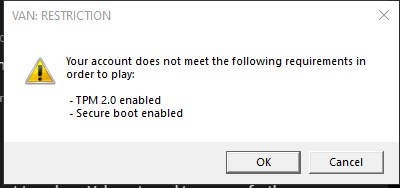
image.png

im not using any cheat in valorant ..
but im using in league and all things is good and fine ..

I tried another account and its working
so I think the problem is in my account only
I gave my account to my friend and he got the same error in this account and his account is working
then valorant support tell me
" As a result of further researches that we made on your account, we didn't find any mistake; that means the disciplinary action is correctly applied. Since the investigations have been made according to conclusive evidences, it is not possible to lift the restriction in the future. "
why ?
and what should i do ?
 
Çözüm
Option 1: Use the Windows Security app

  1. Run Settings > Update & Security > Windows Security > Device Security
    1. If you do not see a Security processor section on this screen your PC may have a TPM that is disabled. see
      Bağlantıları görmek için lütfen Giriş Yap
      for more information or check your PC manufacturer’s support information for instructions. to enable the TPM. If you are able to enable a TPM, complete the next step to verify that it is a TPM 2.0.
    2. If you see an option for Security processor details under Security processor, select that and verify that your Specification version is 2.0. If it is less than 2.0, your device does not meet the Windows 11 requirements.
...
Uzman Üye
Katılım
18 Nis 2019
Mesajlar
213
Çözümler
7
Tepki puanı
38
Ödüller
6
7 HİZMET YILI
Option 1: Use the Windows Security app

  1. Run Settings > Update & Security > Windows Security > Device Security
    1. If you do not see a Security processor section on this screen your PC may have a TPM that is disabled. see
      Bağlantıları görmek için lütfen Giriş Yap
      for more information or check your PC manufacturer’s support information for instructions. to enable the TPM. If you are able to enable a TPM, complete the next step to verify that it is a TPM 2.0.
    2. If you see an option for Security processor details under Security processor, select that and verify that your Specification version is 2.0. If it is less than 2.0, your device does not meet the Windows 11 requirements.
Option 2: Use the Microsoft Management Console

  1. Press [Windows Key] + R or select Start > Run.
  2. Type “tpm.msc” (do not use quotation marks) and choose OK.
    1. If you see a message saying a “Compatible TPM cannot be found,” your PC may have a TPM that is disabled. See 
      Bağlantıları görmek için lütfen Giriş Yap
       for more information or check your PC manufacturer’s support information for instructions to enable the TPM. If you are able to enable the TPM, complete the next step to verify that it is a TPM 2.0.
    2. If you see a message confirming TPM is ready to use, check Specification Version under TPM Manufacturer Information to verify it is 2.0. If it is less than 2.0 your device does not meet the Windows 11 requirement.


How to enable TPM​

If you need to enable TPM, these settings are managed via the UEFI BIOS (PC firmware) and vary based on your device. You can access these settings by choosing: Settings > Update & Security > Recovery > Restart now.

From the next screen, choose Troubleshoot > Advanced options > UEFI Firmware Settings > Restart to make the changes. These settings are sometimes contained in a sub-menu in the UEFI BIOS labeled Advanced, Security, or Trusted Computing. The option to enable the TPM may be labeled Security Device, Security Device Support, TPM State, AMD fTPM switch, AMD PSP fTPM, Intel PTT, or Intel Platform Trust Technology.
 
Çözüm
Fortis Fortuna Adiuvat
Seçkin Üye
Katılım
27 May 2023
Mesajlar
311
Tepki puanı
20
Ödüller
2
Yaş
25
3 HİZMET YILI
ihad the same probleme after i enabled secure boot and tpm and idid new windows version and isolved it
 
Durum
Üzgünüz bu konu cevaplar için kapatılmıştır...
Üst